

Yukti First, the mobile platform
See every screen before you install it
Flat ₹20 per executed order
Twenty-six screens of the app, each one shown next to a plain explanation of what it does, what to set up in it and where people get caught. Tap through the feature tour, walk the first week screen by screen, and open any field on the order ticket to see what it means.
The app
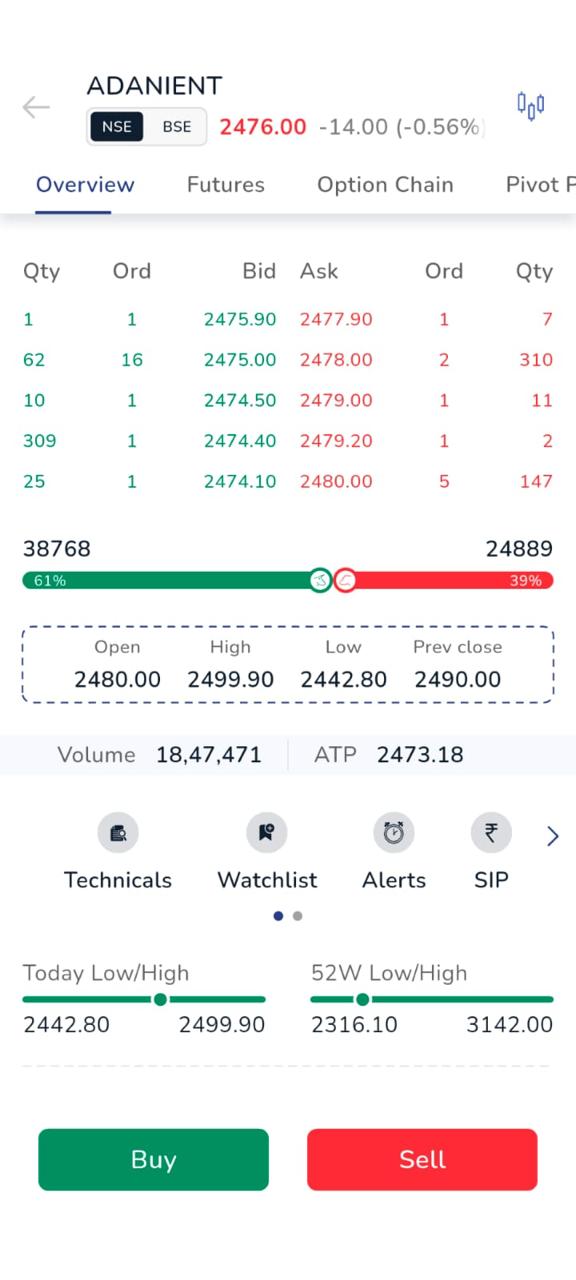
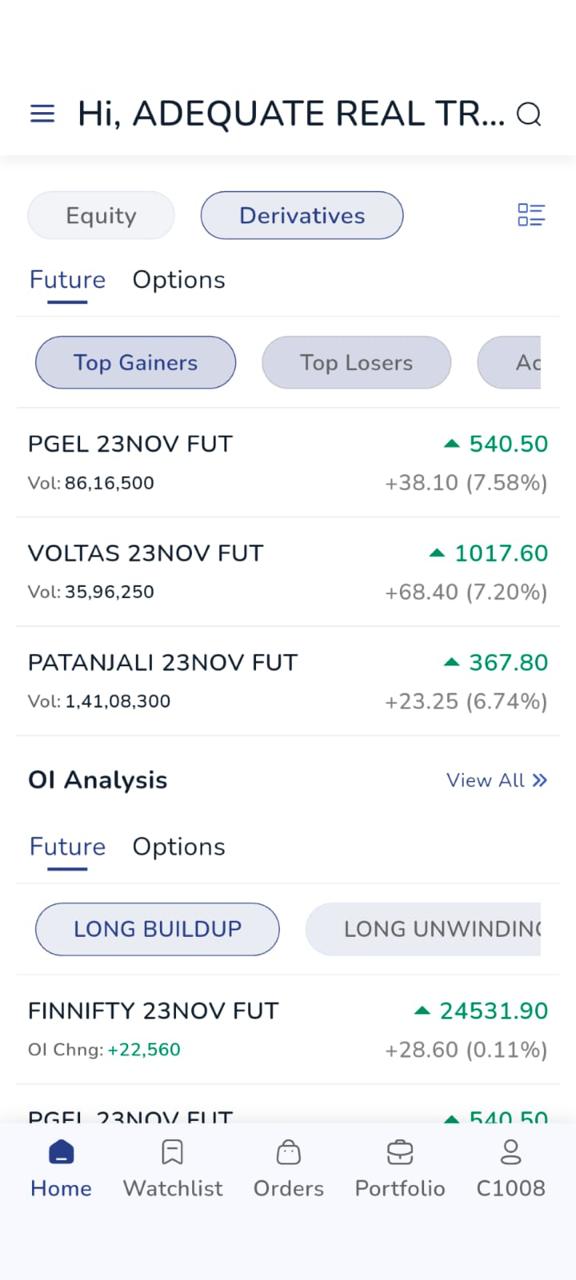
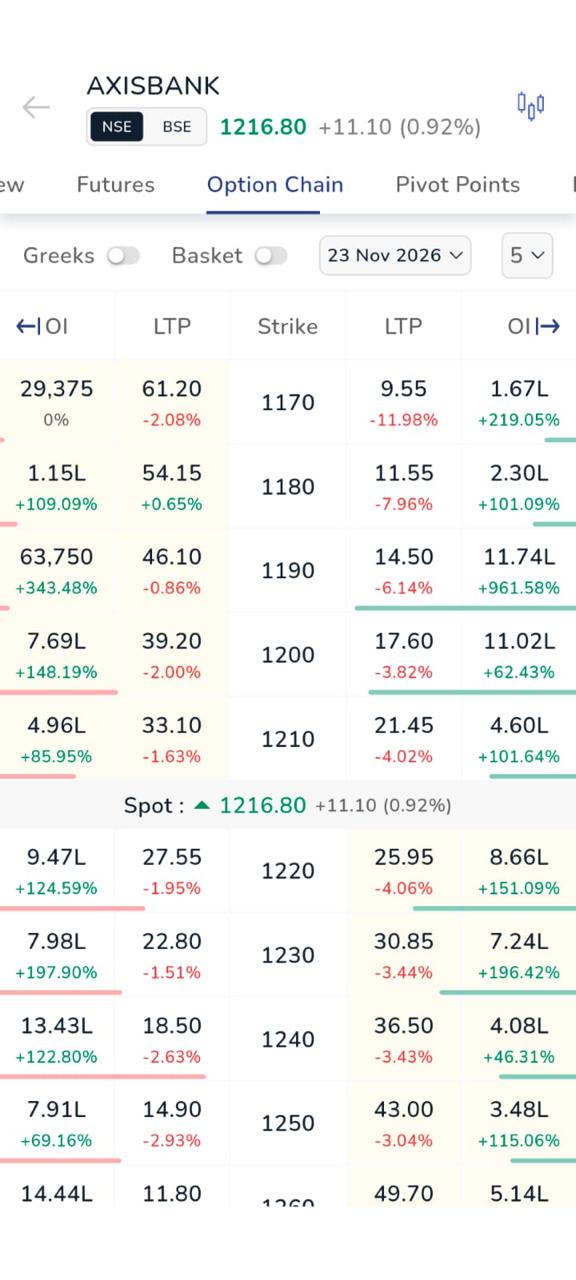
The three screens you will live inWatchlist, order ticket and portfolio. Every other screen in the app is one tap from these.
At a glance
An app makes trading easy, which is not the same as making it safe. Investments in securities are subject to market risks; read all the related documents carefully. Every screen shown on this page is an illustration of the interface, with figures that are examples rather than quotes, positions or results of any kind. A stop-loss is a trigger to place an order and not a guarantee of a price. An intraday product is squared off automatically before the close, at whatever the market offers. Leveraged positions can lose more than the amount you committed. Nothing on this page is investment advice or a recommendation to deal in any security. Download the app only from the official app stores: we do not distribute an installer through any messaging application, link or attachment, and we will never ask you for your password or your one-time password.
Feature tour
Ten screens. Pick one on the left and the phone shows it, with what the screen is for, what it gives you, the facts worth knowing and the thing people most often get wrong in it. Use the arrow keys to move through the list.
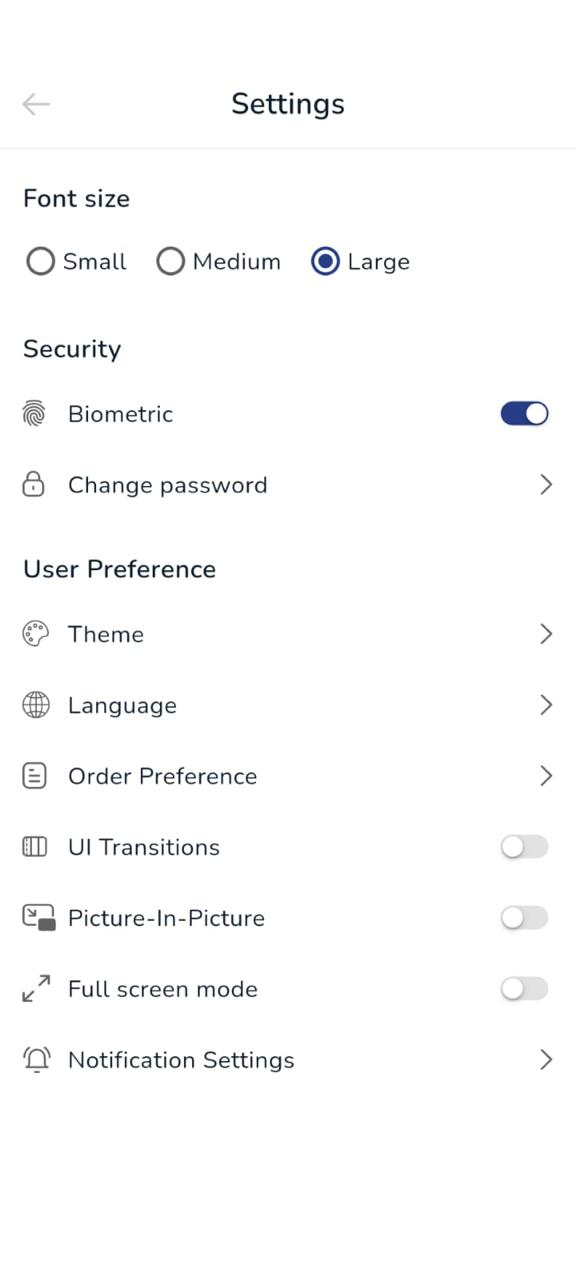
WatchlistsSlot D · 1170 x 2532 · d-watchlists.png
Watchlists
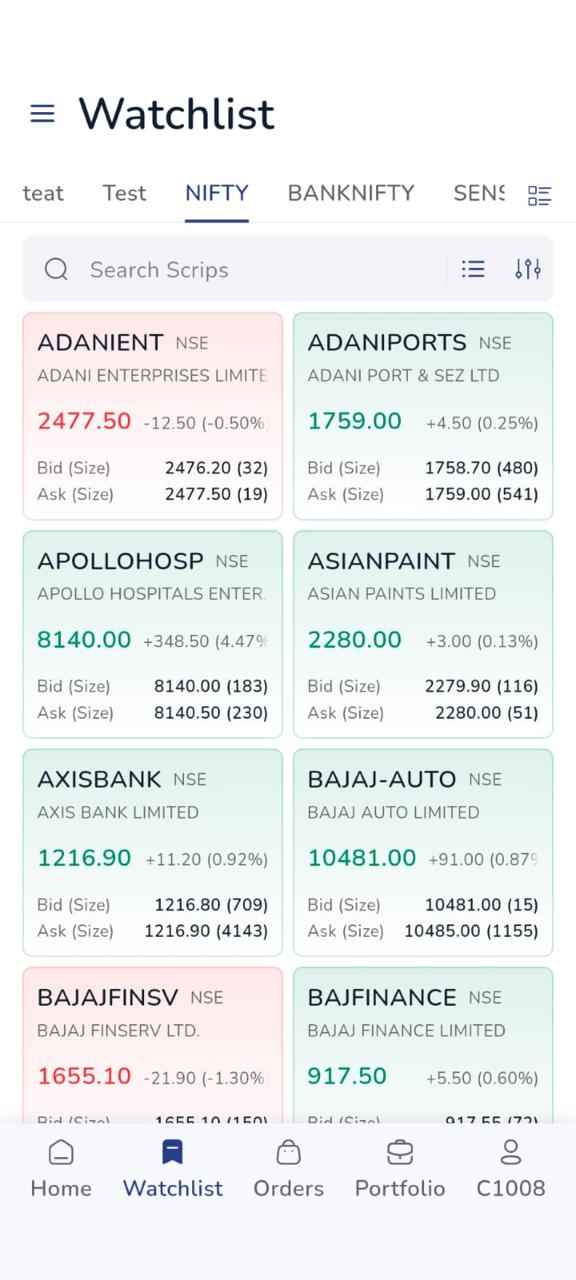
The list you look atSeveral lists you can name and reorder, holding any instrument from any segment the account has. The search finds a contract by name, by symbol or by expiry, and it is also how you reach an order ticket for something you do not follow.
- An instrument can sit in more than one list, so a stock can be in both a long-term list and a this-week list.
- Lists belong to the account rather than the handset, so they are the same on the desktop and in the browser.
- Swiping an entry opens the order ticket, the chart or the market depth without leaving the list.
Forty instruments across six lists is a way of feeling busy rather than informed. The practical limit on a phone is what you can take in at a glance, and anything past that gets skimmed instead of read.
Screens are illustrations of the interface. Instrument names, prices, quantities and balances shown in them are examples and are not quotes, recommendations or results. Features, order types and segments available on a given account depend on what is activated for it, on the exchange and on our risk policy, and are amended from time to time.
Your first week, screen by screen
Six steps from an empty handset to a position you understand. Each one shows the screen you will be looking at and the two or three things to get right on it before moving on.
Install and sign inSlot N · 1170 x 2532 · n-signin.png
Install it, from the store and nowhere else
Open your handset's own app store, search for the app by name and check the publisher on the listing before you install. A link that arrives by message, email or a social application is not the app, however convincing the page it opens looks.
- Google Play on Android, the App Store on iPhone, opened from the handset itself.
- Check the publisher name on the listing. It is the one thing a fake listing cannot copy exactly.
- Sign in with your client code and password, then the second factor.
The order ticket, field by field
The same eight fields appear on every order, and which of them are active depends on the order type you picked. Tap a marker on the screen, or use the list underneath, to read what each one does. Two of them cause most of the trouble: the product field and the validity field.
Instrument and exchange
The contract you are about to deal in, with the exchange it will be sent to. The same name can trade on more than one exchange, and the ticket tells you which one this order is for.
The markers are positioned for the reference screenshot. When the production screenshot for this screen is supplied, the marker positions are a single line of coordinates in the page source and move with it. The fields themselves, and which of them are active for a given order type, are set by the exchange and by the segment.
Ten order types, in short
Each one with the fields you have to fill in, the exact condition that makes it execute, and the way it most commonly disappoints people. Flip the one you are about to use.
Market order
click to read how it works
Limit order
click to read how it works
Stop-loss limit order
click to read how it works
Stop-loss market order
click to read how it works
Cover order
click to read how it works
Bracket order
click to read how it works
Good-till-triggered order
click to read how it works
After-market order
click to read how it works
Iceberg and disclosed quantity
click to read how it works
Basket order
click to read how it works
Which order types are available in which segment, the hours during which each may be placed, any limit on quantity or on the number of legs, and the margin a given order requires are set by the exchange and by our own risk policy, and are amended from time to time. Availability of a particular order type may be withdrawn, including at short notice. Nothing here is a recommendation to use any order type.
Light, dark and legible
The app follows whatever your handset is set to, and you can override it. The point is not decoration: a screen you can read at arm's length in sunlight, and one that does not blind you at night, are the difference between checking a position properly and guessing at it.
LightThe default outdoors, and what most people screenshot.
DarkThe same screen, same information, no glare.
It follows the handset, until you say otherwise
Set your phone to dark at sunset and the app goes with it. If you would rather it stayed one way all the time, that is a setting, and it is remembered per account rather than per device, so a new phone starts the way you left the last one.
Where: account, then appearance.
Your text size is respected
The app uses the text size set in your handset's accessibility settings rather than imposing its own. Larger type reflows the screens instead of clipping them, which matters most on the order ticket, where a number read wrongly is a trade placed wrongly.
Check once: place a test order ticket at your usual text size.
Never colour alone
Direction is carried by a sign and a word as well as by a colour, because a meaningful number of people cannot separate red from green, and because sunlight washes out both. A loss reads as a loss on a bright pavement, not only in a dim room.
Also: every tap target is sized for a thumb, not a cursor.
QuanteX strategies, shown in the app
QuanteX is the algo platform: a strategy builder, and strategy portfolios that run on a published rule set. It is linked to the app rather than merged with it, so orders a strategy places appear here as ordinary orders, tagged with the strategy that placed them.
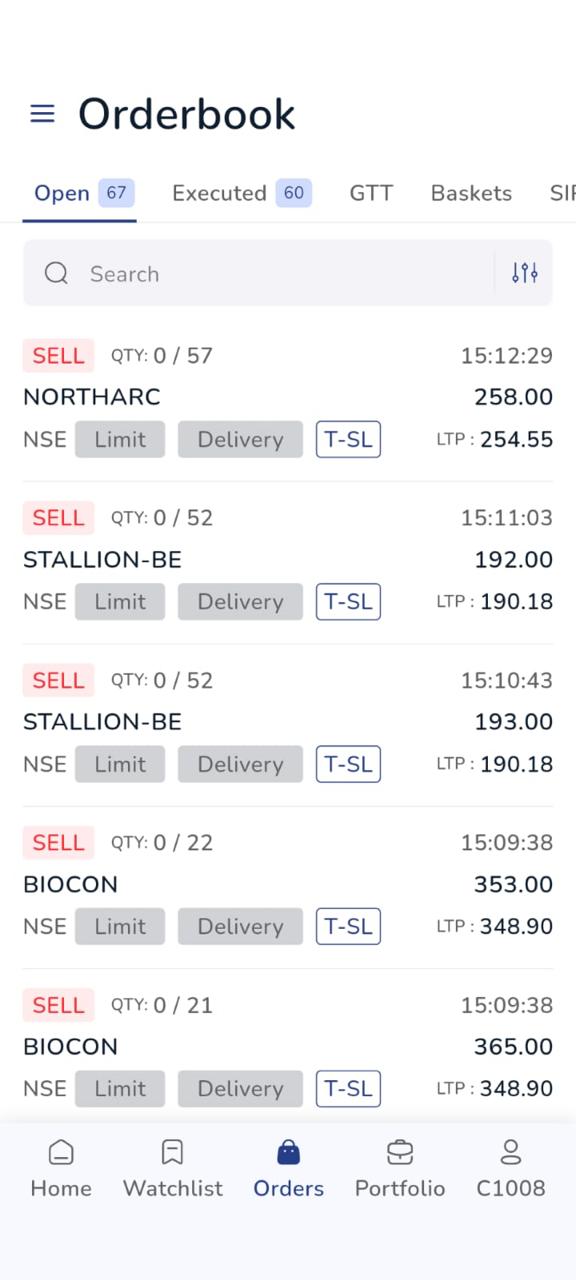
Strategy orders in the appApproved, placed, and visible beside everything else you did yourself.
Three things that stay true
You can run a strategy without giving up any part of the control you have over your own account.
- Nothing goes out until you approve it. A rule firing produces a basket for you to accept, change or ignore. Ignoring it is a valid answer and the strategy records that you did.
- The securities stay in your own demat account. QuanteX never holds them, there is no pooling and there is no second account anywhere.
- One ledger and one contract note. Margin comes from the same balance, and a strategy's trade is on the same contract note as the one you placed by hand.
QuanteX strategy portfolios are model portfolios built on disclosed rules. They are not a portfolio management service, involve no discretion over client accounts and do not constitute investment advice. Backtested and historical figures are not indicative of future results.
QuanteX opens in your browser, on the same account
Build a rule set and test it before you ever place an order through it, or read the published rules behind a strategy portfolio. The orders it produces land in the app you have just been looking at.
Security, and the five rules worth memorising
The platform's job is to make an account hard to misuse. Your job is smaller but it is not optional, and almost every loss of this kind in this market comes down to a credential or a one-time password that somebody shared.
Security settingsSecond factor, biometric unlock, the device list and the active session.
What the app does
- A second factor that never travels. A time-based one-time password generated on your device, rather than a code sent over a message.
- Biometric unlock after the first sign-in. The handset's own secure store answers yes or no. The biometric itself never reaches us.
- One live session at a time. A new or reinstalled device takes the full sign-in, and signing in elsewhere ends the session here.
- Withdrawals only to a mapped bank account in your own name, and changing that mapping is a verified request rather than a setting.
- Alerts you cannot switch off for a sign-in on a new device, a password change, a change of registered contacts and a withdrawal request.
Five rules, and they are the whole of it
- Nobody from here will ever ask for your password or your one-time password. Not support, not a relationship manager, not somebody who already knows your name, your client code and your last trade. Anybody asking is committing a fraud, whatever they say about a settlement, a refund or a block on your account. End the call and telephone us on the published number instead.
- Install the app only from the official app store for your handset. We do not send an installer by message, email, link or attachment, and we do not ask anybody to enable installation from unknown sources. A file that arrives that way is not our app however exactly it looks like it.
- Never let anybody guide you through a screen on your phone. No genuine support call needs remote access, screen sharing or a helper application installed on your handset. If somebody is directing which buttons to press while they wait, the purpose is your money.
- Trade only from your own device, and on a network you trust. Do not sign in on a shared or borrowed phone. If you must, sign out fully afterwards and change your password from your own device.
- Nobody is permitted to trade on your account but you. Handing your credentials to a friend, an advisor or a person promising to manage your money is a breach of your own agreement with us and voids the protection that comes with the account. Authority over an account is granted formally and in writing, never by sharing a password.
What you need, and what it costs
Nothing exotic. A reasonably current handset, an account, an authenticator application and a network connection. There is no charge for the app itself and no platform fee.
Reports and statementsContract notes, the ledger, profit and loss, and the tax statement.
On a home screenThe app icon as it looks once installed, for the store listing and for print.
- Handset
- A reasonably current Android or iPhone. The minimum operating system version is stated on the store listing and moves forward over time, because security updates do.
- An account with us
- A client code. The app is for operating an account, so opening one comes first; it can be done from the form at the foot of this page.
- An authenticator application
- Any standard time-based one-time password application, for the second factor. Free, and on both stores.
- Your own registered mobile number and email
- Both in your own name, both current, because every alert and every statement goes there.
- A network connection
- Orders, quotes and statements need one. Watchlists and recent screens remain readable without one, but nothing can be placed, modified or cancelled offline.
- What it costs
- Nothing for the app, nothing for charts, alerts or reports, and no platform or subscription fee. Brokerage is a flat ₹20 per executed order, plus the statutory charges that are not ours: securities transaction tax, the exchange transaction charge, the SEBI turnover fee, stamp duty, goods and services tax on the brokerage and the exchange and depository charges, and a depository charge on a delivery sell.
- Where to get it
- The official app store for your handset, searched from the handset itself. The store listing addresses are published on the website and shown as XXX here until they are confirmed. We do not distribute an installer by any other means.
- Permissions it asks for
- Only at the point the feature needs it: the camera when you scan a document, notifications when you want alerts. Each can be withdrawn in your handset's settings.
Screen index, A to Z
Every image slot on this page, lettered. Each one says what the screenshot has to show, where on the page it appears and what size to export it at. Until a file is supplied the slot renders as a labelled placeholder, so the page is complete and presentable either way.
| Slot | Screen | What it must show | Where it appears | Export size and file | Status |
|---|---|---|---|---|---|
| A | Watchlist, hero crop | The watchlist as it opens, with a mixed list of instruments across segments. The marketing crop, so it should be the cleanest capture in the set. | Hero, centre phone | 1170 x 2532a-watchlist-hero.png | Supplied |
| B | Order ticket, hero crop | The order ticket with every field visible and nothing half typed. May reuse the capture for slot T if the crop works. | Hero, left phone | 1170 x 2532b-order-ticket-hero.png | Supplied |
| C | Portfolio, hero crop | Positions and holdings, in a neutral or mixed state. Never a screen full of gains. | Hero, right phone | 1170 x 2532c-portfolio-hero.png | Supplied |
| D | Watchlists | A watchlist with the list switcher visible, showing that more than one list exists and that instruments from different segments can sit together. | Feature tour, screen 1 | 1170 x 2532d-watchlists.png | Supplied |
| E | Search and the instrument page | The search with a query typed and results from more than one exchange, or the instrument page it opens. Shows that the same name trades in more than one place. | Feature tour, screen 2 | 1170 x 2532e-instrument.png | Supplied |
| F | Order window | The order window mid-entry, with the product and validity fields clearly legible and the margin or funds line visible. | Feature tour, screen 3 | 1170 x 2532f-order-window.png | Supplied |
| G | Orders book | Open, executed and rejected orders together, with a rejection reason showing on one of them. The rejection is the useful part of this capture. | Feature tour, screen 4 | 1170 x 2532g-orders.png | Supplied |
| H | Positions | Open positions with the product column legible, so intraday and carried positions can be told apart at a glance. Mixed result, not all green. | Feature tour, screen 5 | 1170 x 2532h-positions.png | Supplied |
| I | Holdings | Delivery holdings, with settled quantity distinguishable from quantity bought today. No real client code anywhere in frame. | Feature tour, screen 6 | 1170 x 2532i-holdings.png | Supplied |
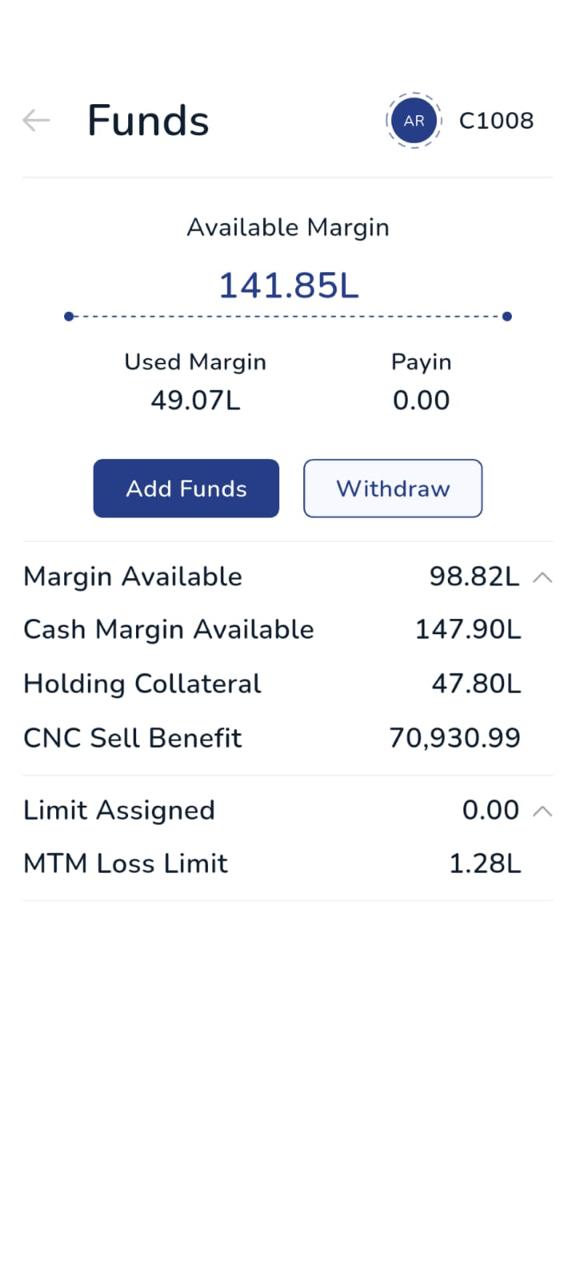
| J | Funds and margin | Available balance, margin used and margin available, with the add and withdraw actions visible. Masked bank account, demonstration figures. | Feature tour, screen 7 | 1170 x 2532j-funds.png | Supplied |
| K | Charts | The chart in landscape with one indicator and one horizontal level drawn, and the order action visible. Landscape capture, rotated to portrait in export if needed. | Feature tour, screen 8 | 2532 x 1170k-chart.png | Supplied |
| L | Alerts and notifications | A price alert being set, or the notification list with an execution and a security alert in it. Shows that an alert notifies and does not place an order. | Feature tour, screen 9 | 1170 x 2532l-alerts.png | Supplied |
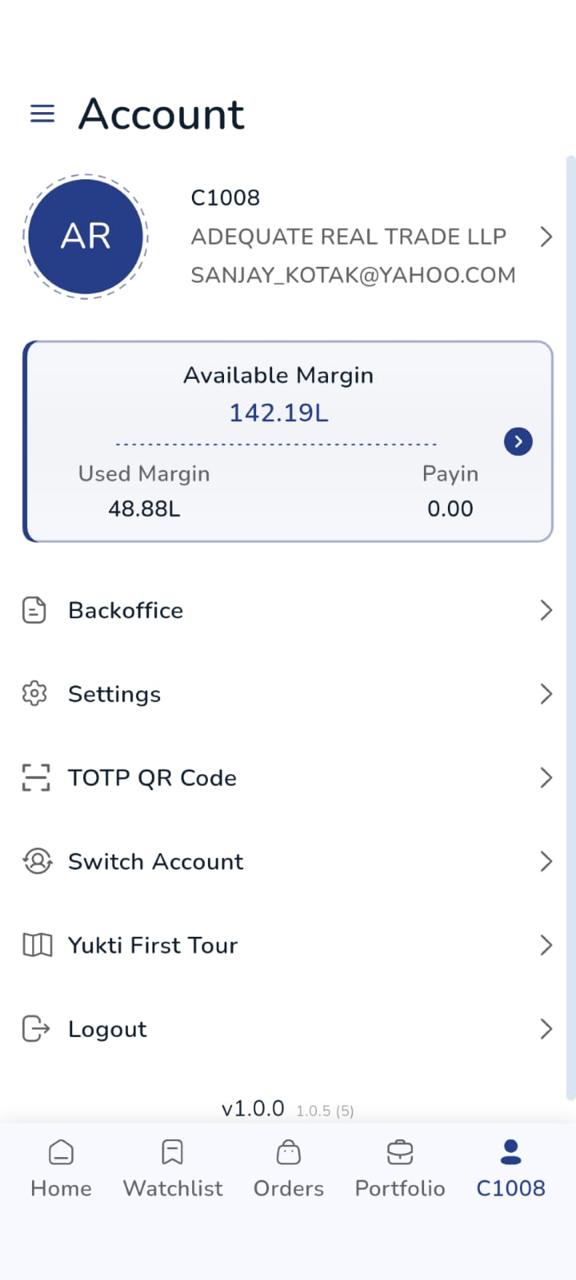
| M | Account and reports | The account tab with statements, reports, settings, security and support visible as entries. No personal detail in the header. | Feature tour, screen 10 | 1170 x 2532m-account.png | Supplied |
| N | Install and sign in | The sign-in screen with the client code field, captured so the store badge or the app name is unambiguous. Nothing typed into the password field. | First week, step 1 | 1170 x 2532n-signin.png | Supplied |
| O | Second factor and biometric | The second factor setup, with the authenticator step and the biometric unlock toggle. Any pairing code must be fake and expired. | First week, step 2 | 1170 x 2532o-second-factor.png | Supplied |
| P | Adding funds | The pay-in screen with a mapped bank account shown masked, and the amount field. No real account number, not even partially. | First week, step 3 | 1170 x 2532p-add-funds.png | Supplied |
| Q | Building a watchlist | An instrument being added to a named list, so the naming and reordering are both visible in one frame. | First week, step 4 | 1170 x 2532q-build-watchlist.png | Supplied |
| R | A first order, small | The ticket with a small quantity and the confirmation step, with product and validity legible. This is the screen people study most, so it must be sharp. | First week, step 5 | 1170 x 2532r-first-order.png | Supplied |
| S | Orders and the contract note | The executed order with its charges breakdown, or the statements screen with the contract note entry. Figures illustrative, charges plausible. | First week, step 6 | 1170 x 2532s-contract-note.png | Supplied |
| T | Order ticket, all eight fields | The reference capture for the tappable markers. Every one of the eight fields must be visible and in the usual order, with nothing scrolled out of frame. | Order ticket, marker base | 1170 x 2532t-ticket-fields.png | Supplied |
| U | Light theme | Any one information-dense screen in the light theme. Whatever screen is chosen, slot V must be the identical screen in dark. | Light and dark, left | 1170 x 2532u-light.png | Supplied |
| V | Dark theme | The identical screen to slot U, in dark, with the same data on it. A different screen here defeats the comparison. | Light and dark, right | 1170 x 2532v-dark.png | Supplied |
| W | Strategy orders in the app | The orders tab with orders tagged to a QuanteX strategy alongside orders placed by hand, so the tagging is obvious. | QuanteX section | 1170 x 2532w-quantex-orders.png | Supplied |
| X | Security settings | Second factor, biometric unlock, the device list and the active session. No device names that identify a person. | Security section | 1170 x 2532x-security.png | Supplied |
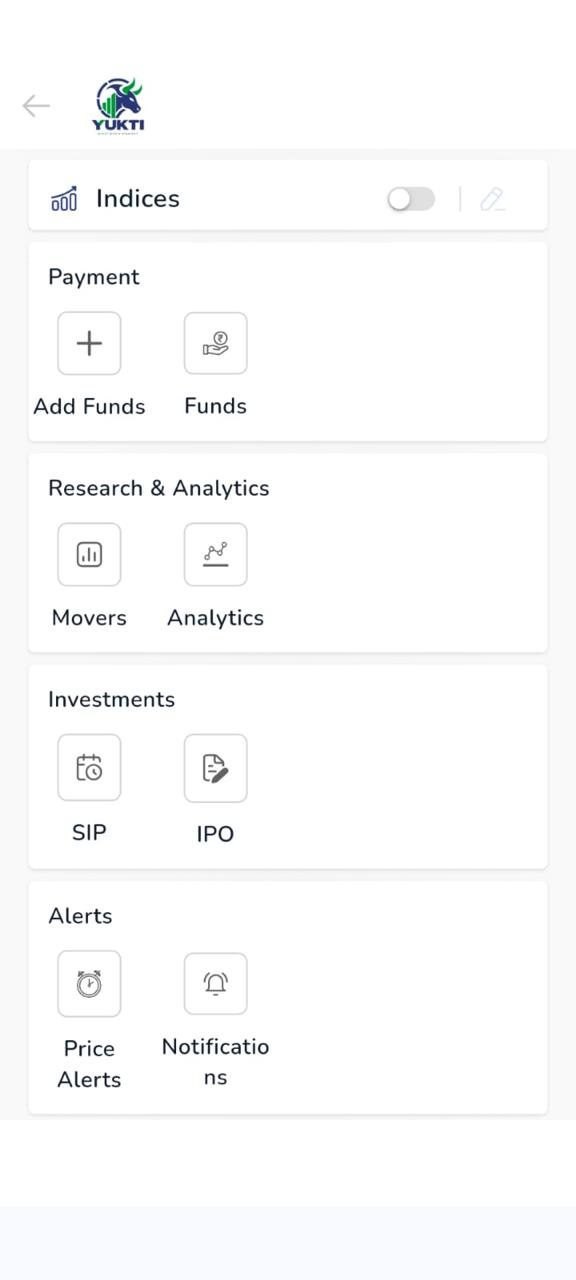
| Y | Reports and statements | The statements list: contract notes, ledger, profit and loss, tax statement, margin statement. A period selector visible helps. | Requirements, left | 1170 x 2532y-reports.png | Supplied |
| Z | App icon on a home screen | The installed icon on a home screen, with surrounding icons blurred or replaced. Used for the store listing and for print. | Requirements, right | 1170 x 2532z-home-screen.png | Supplied |
One line each, in one place
Every slot on this page is driven by a single list in the page source. Supplying a screenshot means putting its path into that list; nothing else on the page has to change, and the placeholder disappears by itself.
Search the page source for SHOTS. It is one entry per slot, in letter order, and it is the only place a file name appears.
Put the image path into src for that slot, for example src:"screens/a-watchlist.png". A full address or a data URI works equally well.
The placeholder hides itself, the image fills the device frame, the alternative text comes from the same entry and the status column above turns to Supplied.
The pills above this table say how many slots are supplied. When that figure reaches twenty-six, every placeholder on the page has gone.
SHOTS = {
  A: { t:"Watchlist",    px:"1170 x 2532", f:"a-watchlist.png",   src:"screens/a-watchlist.png" },
  B: { t:"Order ticket", px:"1170 x 2532", f:"b-order-ticket.png", src:"" },
  C: { t:"Portfolio",    px:"1170 x 2532", f:"c-portfolio.png",    src:"" },
  ...
}
Slot A above has a file and renders as a screenshot. Slots B and C have an empty src and render as placeholders. The abbreviated entries here leave out the description fields, which are already filled in on the page and do not need touching.
Seven rules for the screenshots themselves
- Capture from a demonstration account, never a client's. A screenshot carrying a real client code, a real holding or a real bank account is a disclosure, and once it is on a website it is published. Use an internal account created for the purpose.
- No identifying detail anywhere in frame. Name, client code, mobile number, email, bank account, address, nominee. Check the top of the screen and any partially visible row at the bottom, which is where these survive a careless crop.
- Figures must be plausible and clearly illustrative. Prices, quantities and balances in a marketing screenshot are examples. Keep them realistic enough not to look absurd and far enough from any real session that nobody can read them as a quote or a result.
- Never show a profit as an inducement. A screen full of green gains presented as what the app does is a performance representation, and it is exactly the thing that is not permitted. Prefer a neutral or mixed state, which is also more honest about what a market does.
- One device, one theme, one text size per set. Mixing a tall handset with a short one, or light with dark inside the same section, makes a carefully built page look assembled from leftovers. The light and dark pair in the theme section is the one deliberate exception.
- Export at the device's own resolution. The size against each slot is the native capture for a current handset. Do not upscale a smaller capture, and do not screenshot a simulator at a window size that is not a real device.
- Keep the status bar clean and consistent. Full signal, a sensible battery level and no notification clutter across the whole set. If the operating system shows a recording indicator, capture again without it.
Every screenshot published on this page must carry the illustration note. The page states, in the risk band and under the tour, that screens are illustrations of the interface and that the figures in them are examples rather than quotes, positions or results. Keep that wording when the real captures go in, and have the compliance officer approve the final set before it is published, as any other advertisement would be.
Asked most often about the app
Are the screens on this page the real app?
click to see the answer
Does the app cost anything, and is there a platform fee?
click to see the answer
Is it the same account on the app, the desktop and the browser?
click to see the answer
Which segments can I trade from the phone?
click to see the answer
What happens to my orders if the app crashes or my phone dies?
click to see the answer
My stop-loss executed far below the price I set. How?
click to see the answer
Why was my intraday position closed when I had not asked?
click to see the answer
Nobody will ask me for a one-time password. What if somebody does?
click to see the answer
Does the app watch what I do, and what happens to my data?
click to see the answer
Something went wrong and I am not satisfied with the answer I got.
click to see the answer